

Running Nginx Proxy Manager on your Unraid server provides an elegant solution for managing reverse proxy configurations, but understanding your traffic patterns requires proper analytics. I wanted a GUI to monitor Nginx Proxy Manager logs and see what’s happening in real-time without constantly tailing log files in the terminal. This search led me to GoAccess for Nginx Proxy Manager – a lightweight solution that transforms raw proxy logs into actionable insights.

GoAccess dashboard displaying real-time Monitoring of Nginx Proxy Manager analytics with visitor statistics and traffic patterns
What makes GoAccess particularly attractive for home lab environments is its minimal resource footprint. I made it even more lightweight by skipping archived/zipped logs (setting SKIP_ARCHIVED_LOGS to true), which means the container processes only current logs. This configuration provides real-time monitoring without the overhead of parsing months of historical data on every restart.
While alternatives like the ELK stack, Splunk, Grafana Loki, and Graylog offer comprehensive features, they demand significant RAM (4-8GB minimum), complex configuration, and ongoing maintenance. GoAccess stands out as the most lightweight and painless setup to maintain when you need to monitor Nginx Proxy Manager – running as a single container consuming next to no resources whilst delivering sleek analytics without any overhead. I monitor GoAccess-NPM via Dozzle, I have nerver seen it using any RAM and CPU was max at 1%. Even if it using some RAM, its probably just momentarily.

Dozzle showing Memory and CPU Usage for GoAccess Nginx Proxy Manager Logs Monitoring
Table of Contents
Installing GoAccess on Unraid
Navigate to the Unraid Apps tab (Community Applications) and search for “GoAccess”. Install Xavier Hernandez’s community application template. The project is available on GitHub with documentation.
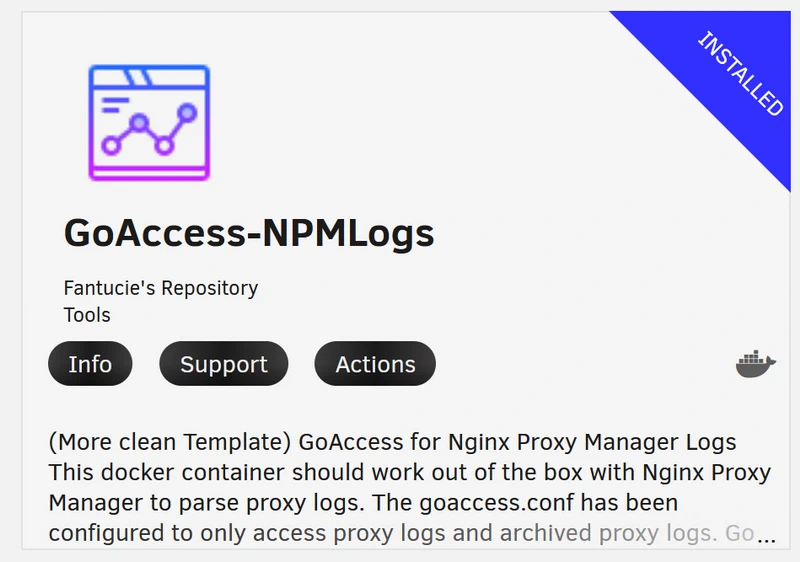
When installing Docker containers on Unraid, the Community Applications store simplifies the process significantly. The template includes all necessary environment variables with sensible defaults.
Configuration Settings
The following table contains every setting shown in the Unraid Docker template:
| Setting | Value | Notes |
|---|---|---|
| Http Port | 7880 | External access port for dashboard |
| NginxLog | /mnt/user/appdata/NginxProxyManager/logs/ | Path to NPM log directory |
| LogType | NPM+ALL | Processes proxy, redirection, and error logs |
| SKIP_ARCHIVED_LOGS | true | Set to false for complete historical analysis |
| BASIC_AUTH | true | Enables dashboard password protection |
| BASIC_AUTH_USERNAME | your-username | Choose secure username (not “admin”) |
| BASIC_AUTH_PASSWORD | your-secure-password | Use complex password with special characters |
| EXCLUDE_IPS | Leave empty | Optional: comma-separated IPs to exclude |
| DEBUG | false | Enable only when troubleshooting issues |
The NginxLog path must point to your actual NGINX Proxy Manager logs directory. The container needs read access to these logs, which the template configures automatically through the read-only mount.
Understanding LOG_TYPE Options
- NPM – Processes only proxy host logs. Basic option for traffic to proxied services.
- NPM+R – Creates a second instance at
/redirection/that processes redirection host logs. - NPM+ALL – Recommended option. Creates three instances: main dashboard for proxy traffic,
/redirection/for redirections, and/error/for error analysis.
Accessing the Dashboard
Click Apply to start the container. Initial startup may take several minutes whilst processing existing logs. Access the dashboard at http://10.0.0.100:7880 (replace with your Unraid IP). Enter your configured username and password when prompted.

The dashboard displays comprehensive statistics including visitors, requested files, 404 errors, operating systems, browsers, time distribution, geographic location, and HTTP status codes. Each panel updates automatically as new requests flow through your proxy.
Exposing Through Nginx Proxy Manager
For cleaner access, create a proxy host in NPM:
| NPM Setting | Value |
|---|---|
| Domain Names | goaccess.yourdomain.com |
| Scheme | http |
| Forward Hostname/IP | 10.0.0.100 (your Unraid IP) |
| Forward Port | 7880 |
| Websockets Support | Enabled (critical for real-time updates) |
| SSL Certificate | Request new Let’s Encrypt certificate |
WebSockets support is critical for real-time updates. Without this, the dashboard won’t refresh automatically.
Understanding Dashboard Insights
When you monitor Nginx Proxy Manager using GoAccess, the dashboard reveals which services receive the most traffic, when peak usage occurs, and where visitors originate globally. The Geographic Location data, powered by MaxMind’s GeoLite2 database, helps identify unexpected traffic patterns that might indicate security concerns. For home labs running 95+ Docker containers on Unraid, this visibility proves essential for maintaining system efficiency and resource allocation decisions.
Conclusion
Monitoring Nginx Proxy Manager effectively transforms opaque proxy logs into actionable intelligence. GoAccess requires minimal configuration whilst providing comprehensive traffic analytics that help optimise performance, identify security issues, and understand user behaviour. The straightforward installation through Unraid’s Community Applications means you can deploy very cool log analytics in minutes. For more information, refer to the official GoAccess documentation and the project’s GitHub repository.
That’s it, Enjoy!